

Askimo App Features & Workflows
Ce contenu n’est pas encore disponible dans votre langue.
Discover Askimo App’s powerful features that help you chat with AI providers, control AI behavior with custom directives, search conversations, and manage your chat history effectively.
Start a Chat
Section titled “Start a Chat”Begin conversations with any configured AI provider.
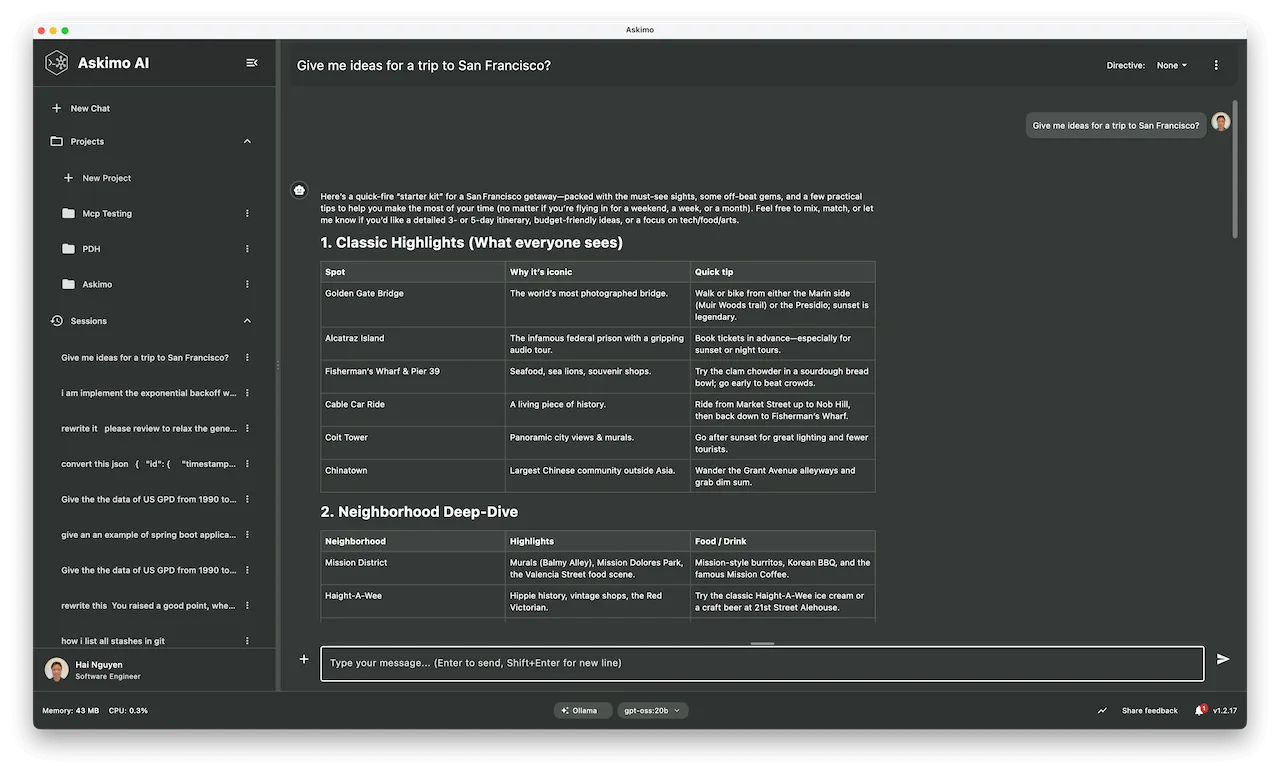
Creating a New Chat
Section titled “Creating a New Chat”Quick Start:
- Click the “+” button in the sidebar
- Select your AI provider (OpenAI, Claude, Gemini, xAI, Ollama)
- Choose a model (if multiple are available)
- Start typing your message
Keyboard Shortcut:
- macOS:
⌘ + N - Windows/Linux:
Ctrl + N
Search in a Conversation
Section titled “Search in a Conversation”Find specific messages within your current chat conversation quickly and efficiently.
Using In-Chat Search
Section titled “Using In-Chat Search”Opening Search:
- macOS:
⌘ + F - Windows/Linux:
Ctrl + F - Or click the search icon in the chat header
Search Features:
- Text Search: Find any keyword or phrase in the conversation
- Case Sensitive: Toggle for exact case matching
- Navigate Results: Jump between matches with next/previous buttons
- Highlight Matches: All matching text is highlighted in the conversation
Search Navigation:
- Open search with
⌘/Ctrl + F - Type your search query
- Press
Escto close search
Create Custom Directives
Section titled “Create Custom Directives”Shape how the AI responds — set its tone, role, and output format once and have every message in the conversation follow those rules automatically.
→ Full guide: Custom Directives
Star a Chat Session
Section titled “Star a Chat Session”Star your favorite chat sessions for quick access. Starred chats stay at the top of your chat list.
How to Star:
- Right-click on a chat in the sidebar
- Select “Star Chat”
- Starred chats will appear at the top for quick access
How to Unstar:
- Right-click on a starred chat
- Select “Unstar Chat”
Export a Chat Session
Section titled “Export a Chat Session”Export your conversations to Markdown format for backup, sharing, or documentation.
How to Export:
- Right-click on a chat in the sidebar
- Select “Export to Markdown”
- Choose a location and save as a
.mdfile
The exported file preserves all formatting, code blocks, timestamps, and conversation metadata.
Delete a Chat Session
Section titled “Delete a Chat Session”Remove conversations you no longer need to keep your workspace organized.
Deleting a Chat
Section titled “Deleting a Chat”From Sidebar:
- Right-click on the chat you want to delete
- Select “Delete”
- Confirm deletion
Explore More
Section titled “Explore More”- Full Features Overview - Visual showcase of all Askimo capabilities including RAG, MCP Tools, and AI Plans
- Custom Directives - Personalize AI tone, role, and output format
- Web Search - Configure web search backends and use live web data in chat
- RAG: Chat with your documents - Build local knowledge bases from your files
- MCP Tool Integrations - Connect AI to GitHub, databases, and real-world tools
- AI Plans - Automate multi-step AI workflows
- Download Askimo - Free for macOS, Windows, and Linux