

Askimo App Features & Workflows
此内容尚不支持你的语言。
Discover Askimo App’s powerful features that help you chat with AI providers, control AI behavior with custom directives, search conversations, and manage your chat history effectively.
Start a Chat
Section titled “Start a Chat”Begin conversations with any configured AI provider.
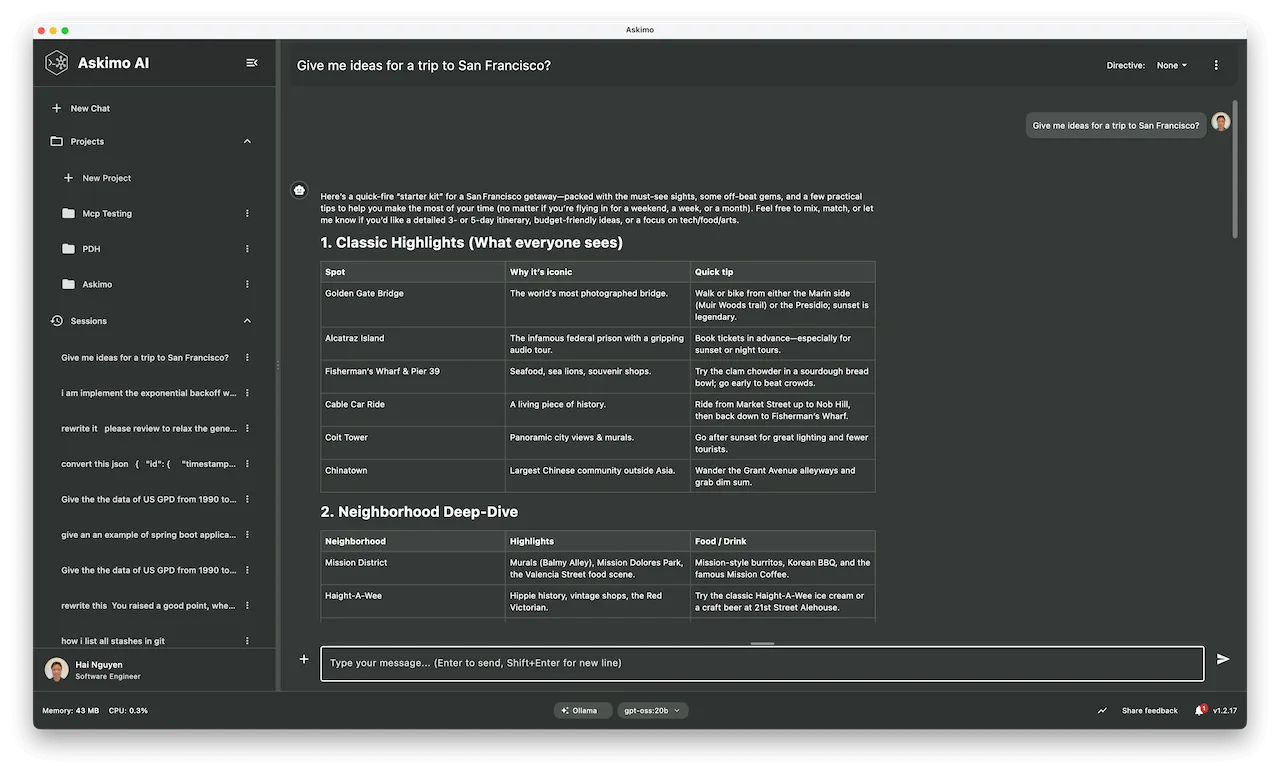
Creating a New Chat
Section titled “Creating a New Chat”Quick Start:
- Click the “+” button in the sidebar
- Select your AI provider (OpenAI, Claude, Gemini, xAI, Ollama)
- Choose a model (if multiple are available)
- Start typing your message
Keyboard Shortcut:
- macOS:
⌘ + N - Windows/Linux:
Ctrl + N
Search in a Conversation
Section titled “Search in a Conversation”Find specific messages within your current chat conversation quickly and efficiently.
Using In-Chat Search
Section titled “Using In-Chat Search”Opening Search:
- macOS:
⌘ + F - Windows/Linux:
Ctrl + F - Or click the search icon in the chat header
Search Features:
- Text Search: Find any keyword or phrase in the conversation
- Case Sensitive: Toggle for exact case matching
- Navigate Results: Jump between matches with next/previous buttons
- Highlight Matches: All matching text is highlighted in the conversation
Search Navigation:
- Open search with
⌘/Ctrl + F - Type your search query
- Press
Escto close search
Create Custom Directives
Section titled “Create Custom Directives”Shape how the AI responds — set its tone, role, and output format once and have every message in the conversation follow those rules automatically.
→ Full guide: Custom Directives
Star a Chat Session
Section titled “Star a Chat Session”Star your favorite chat sessions for quick access. Starred chats stay at the top of your chat list.
How to Star:
- Right-click on a chat in the sidebar
- Select “Star Chat”
- Starred chats will appear at the top for quick access
How to Unstar:
- Right-click on a starred chat
- Select “Unstar Chat”
Export a Chat Session
Section titled “Export a Chat Session”Export your conversations to Markdown format for backup, sharing, or documentation.
How to Export:
- Right-click on a chat in the sidebar
- Select “Export to Markdown”
- Choose a location and save as a
.mdfile
The exported file preserves all formatting, code blocks, timestamps, and conversation metadata.
Delete a Chat Session
Section titled “Delete a Chat Session”Remove conversations you no longer need to keep your workspace organized.
Deleting a Chat
Section titled “Deleting a Chat”From Sidebar:
- Right-click on the chat you want to delete
- Select “Delete”
- Confirm deletion
Explore More
Section titled “Explore More”- Full Features Overview - Visual showcase of all Askimo capabilities including RAG, MCP Tools, and AI Plans
- Custom Directives - Personalize AI tone, role, and output format
- Web Search - Configure web search backends and use live web data in chat
- RAG: Chat with your documents - Build local knowledge bases from your files
- MCP Tool Integrations - Connect AI to GitHub, databases, and real-world tools
- AI Plans - Automate multi-step AI workflows
- Download Askimo - Free for macOS, Windows, and Linux