
OpenAI
Configure the latest OpenAI models and other compatible AI models.
이 콘텐츠는 아직 번역되지 않았습니다.
Welcome to Askimo App! By default Askimo is a bring-your-own-key app. You connect directly to AI providers using your own API keys. Your keys are encrypted and stored only on your machine.
If you are setting up Askimo for a team, there are two other options worth knowing about before you start:
After installing Askimo App, you’ll need to configure at least one AI provider to start chatting.
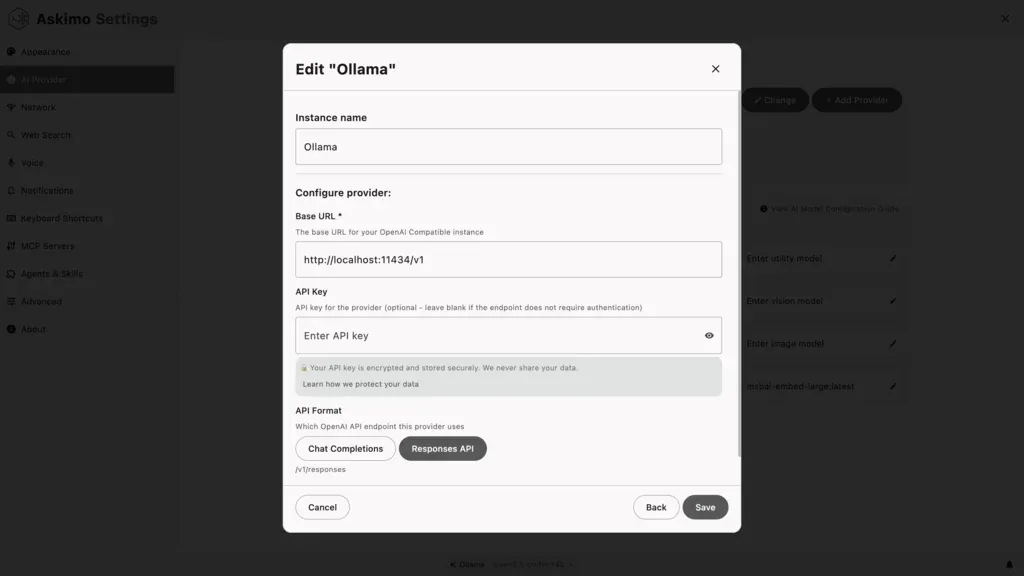
⌘ + , then click “AI Providers”Ctrl + , then click “AI Providers”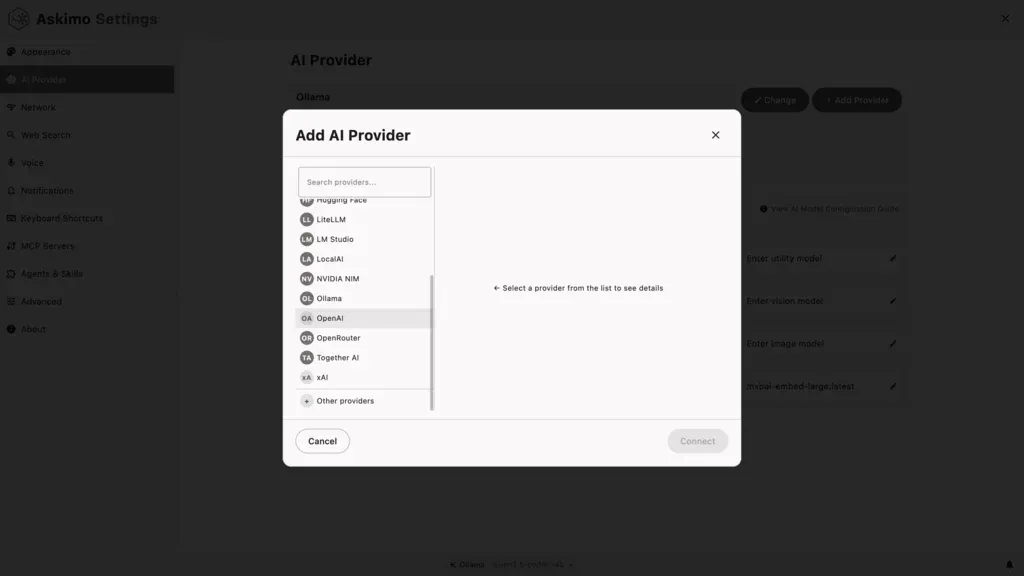
Each provider below requires your own API key or a locally running server. Keys are stored encrypted on your machine only.
OpenAI
Configure the latest OpenAI models and other compatible AI models.
Anthropic Claude
Set up the latest Claude models for advanced reasoning and long-context tasks.
Google Gemini
Configure the latest Google Gemini models including multimodal and reasoning options.
xAI (Grok)
Connect to xAI’s Grok models for cutting-edge AI.
Ollama
Run AI models locally with complete privacy and offline access.
LM Studio
Professional local AI model management with GPU acceleration.
LocalAI
Self-hosted AI server for enterprise and privacy-critical workloads.
Docker AI
Containerized AI models from Docker Hub for DevOps workflows.
Run an OpenAI-compatible proxy on a shared server. Team members connect Askimo with just a URL, with no personal API keys needed. The real provider keys stay on the server. LiteLLM is a popular open-source option that works with Askimo out of the box, but any OpenAI-compatible gateway will work.
Shared AI Gateway
Point Askimo at any OpenAI-compatible proxy to share AI access across your team. No per-user accounts, central spend control. LiteLLM is one popular open-source option.
OpenAI, Claude, Gemini, xAI
✅ Pros:
❌ Cons:
Ollama, LM Studio, LocalAI, Docker AI
✅ Pros:
❌ Cons:
Any OpenAI-compatible AI gateway
✅ Pros:
❌ Cons:
Once you’ve configured at least one provider, you’re ready to start!
⌘/Ctrl + NEnter to send