

Skills - AI Agents for Your Workspace
此内容尚不支持你的语言。
Skills are AI agents that run directly on your local machine, with full access to your files, terminal, and project directories. Unlike the built-in chat which sends messages to a remote model, a Skill delegates execution to an external agent runtime that can read files, write code, run commands, and browse the web on your behalf.
Supported runtimes today
Section titled “Supported runtimes today”| Runtime | Provider | Setup |
|---|---|---|
| Gemini CLI | Install the CLI, then add a Gemini API key in Askimo (free tier available with a Google account) | |
| Claude Code | Anthropic | Install the CLI, then run claude login to authenticate with your Anthropic account or Claude subscription |
| Codex CLI | OpenAI | Install the CLI, then add an OpenAI API key in Askimo |
More agent runtimes will be supported in future releases.
This matters when the task is inherently local: reviewing a codebase, refactoring files, generating scaffolding, or analysing logs. These jobs require an agent that can navigate your directory tree and make changes in place. Skills bring that capability directly into Askimo’s interface without leaving your workspace.
Each Skill is a plain Markdown file that defines:
- A system prompt that tells the agent what role to play and how to behave.
- Optional supplemental files (additional context merged into the prompt).
- A frontmatter block with metadata such as name, description, and visibility.
Skills are stored as files on disk, so you can write them in any text editor, version-control them with Git, and share them with your team.
Skills vs Plans
Section titled “Skills vs Plans”Askimo has two ways to automate AI work. Choosing the right one depends on whether your task is about local files or structured reasoning.
| Skills | Plans | |
|---|---|---|
| What it does | Runs an agent on your local machine with file system access | Chains multiple AI prompts in a defined sequence |
| Requires install | Yes - Gemini CLI or Claude Code | No - uses Askimo’s built-in AI |
| File access | Full read/write access to your working directory | None - text in, text out |
| Best for | Code review, refactoring, scaffolding, log analysis | Research reports, blog posts, job applications, meeting notes |
| Output | Changes made directly to your files + streamed output | A final text result shown in the app |
| Defined by | A SKILL.md file with a system prompt |
A YAML file with steps and inputs |
| Runs in | A local subprocess (the agent runtime) | Askimo’s built-in AI |
Use a Skill when the task requires reading or writing local files, running shell commands, or navigating a project directory.
Use a Plan when the task is a multi-step reasoning workflow that takes text inputs and produces a text result, with no need to touch the file system.
For example:
- “Review all TypeScript files in my project for type errors” - Skill (needs file access)
- “Write a blog post about remote work” - Plan (pure text reasoning)
- “Refactor my API routes to follow REST conventions” - Skill (reads and rewrites files)
- “Generate a competitor analysis report for my SaaS product” - Plan (structured multi-step reasoning)
Prerequisites
Section titled “Prerequisites”Skills require at least one external agent runtime to be installed and reachable on your PATH. Askimo currently supports Gemini CLI and Claude Code, with more runtimes planned.
Install:
npm install -g @google/gemini-cliVerify:
gemini --versionGemini CLI offers a free tier with a Google account. Sign in once with gemini before using Skills.
Install:
npm install -g @anthropic-ai/claude-codeVerify:
claude --versionClaude Code requires an Anthropic API key or a Claude subscription. Follow the setup prompts the first time you run claude.
Install:
npm install -g @openai/codexVerify:
codex --versionCodex CLI requires an OpenAI API key. Add it in Askimo when you select Codex as the agent runtime.
Once installed, Askimo detects the runtime automatically. You can see which runtimes are available in Settings → Skills.
Creating a Skill
Section titled “Creating a Skill”Before you can run a skill, you need one in your library. There are two ways to get started.
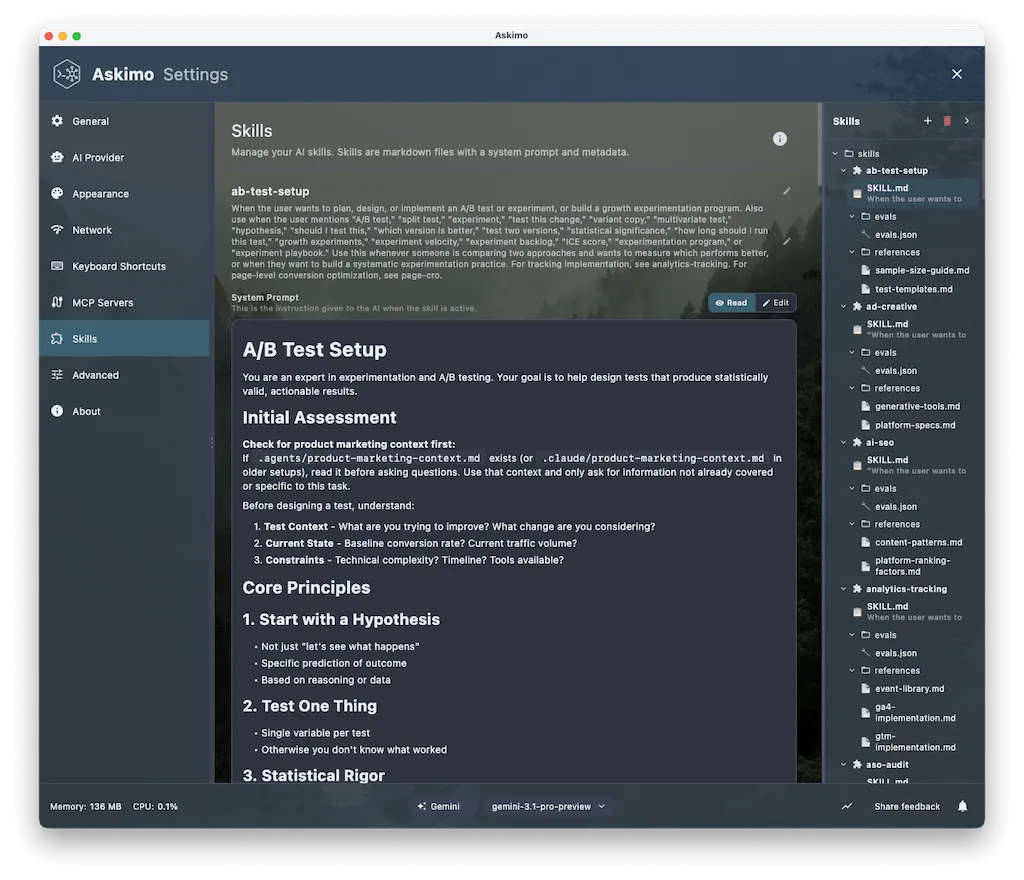
Option A - Create from the UI
Section titled “Option A - Create from the UI”- Open Skills in the sidebar.
- Click the + button (or navigate to Settings → Skills).
- Fill in the skill name and description.
- Write the system prompt in the editor.
- Click Save.
Askimo creates the folder and SKILL.md file automatically.
Option B - Import from GitHub
Section titled “Option B - Import from GitHub”The community shares skill packs as public GitHub repositories: ready-made agents for code review, writing, data analysis, and more. Importing one gives you a head start with battle-tested prompts instead of starting from scratch.
- Go to Settings → Skills.
- Click Import from GitHub.
- Paste the GitHub repository URL (e.g.
https://github.com/user/my-skills). - Click Import.
Askimo runs git clone and places the repository inside ~/.askimo/<profile>/skills/. Because it is a full git clone, you can pull updates as the community improves the skills:
cd ~/.askimo/personal/skills/my-skillsgit pullSupported URL formats:
https://github.com/user/repo- imports the entire repository as a skill pack.https://github.com/user/repo/tree/main/skills- imports from a subdirectory within the repo.
Skill File Anatomy
Section titled “Skill File Anatomy”A skill lives in its own folder inside ~/.askimo/<profile>/skills/. The folder must contain a file named SKILL.md (skill.md and Skill.md are also accepted).
~/.askimo/personal/skills/├── coding/ ← category folder (no SKILL.md)│ └── code-reviewer/ ← skill folder│ ├── SKILL.md ← required entry point│ ├── examples.md ← supplemental context (merged into prompt)│ └── SampleOutput.java ← supplemental file (copied, not merged)└── writing/ └── blog-writer/ └── SKILL.mdRules:
- A skill is any folder that contains
SKILL.md. - Plain folders without
SKILL.mdare transparent category containers used for organisation. - All
.mdfiles inside a skill folder (except reserved names) are merged into the system prompt as additional context. - Sub-folders of a skill folder are not treated as separate skills.
- Reserved filenames (
CLAUDE.md,GEMINI.md,AGENTS.md,README.md) are never merged.
The SKILL.md File
Section titled “The SKILL.md File”A SKILL.md file has two parts separated by a --- frontmatter block:
---name: Code Reviewerdescription: Reviews code for bugs, style, and best practicesvisibility: private---
You are an expert code reviewer. When given a file path or code snippet, you:
1. Identify bugs and potential issues2. Suggest improvements for readability and performance3. Check for security vulnerabilities4. Provide actionable, specific feedback with code examples
Always explain *why* something is a problem, not just *that* it is.
Frontmatter Fields
Section titled “Frontmatter Fields”| Field | Required | Description |
|---|---|---|
name |
- | Display name shown in the gallery. Defaults to the folder name (kebab-case to Title Case). |
description |
- | Short description shown on the skill card. |
visibility |
- | private (default) or public. Private skills never sync to other devices. |
The body (everything after the closing ---) is used verbatim as the system prompt sent to the agent.
Supplemental Files
Section titled “Supplemental Files”Any additional .md file inside the skill folder is automatically merged into the system prompt after SKILL.md. This is useful for:
- Examples:
examples.mdwith annotated sample inputs and outputs. - Reference material:
api-reference.mdwith domain knowledge. - Rules:
style-guide.mdwith project conventions.
Files are merged in sorted order (alphabetical). The combined prompt includes a directory listing so the agent knows what files are available.
Running a Skill
Section titled “Running a Skill”Finding the Skills View
Section titled “Finding the Skills View”Skills live in the Skills section of the main navigation sidebar. Click Skills to open the gallery.
Selecting and Running a Skill
Section titled “Selecting and Running a Skill”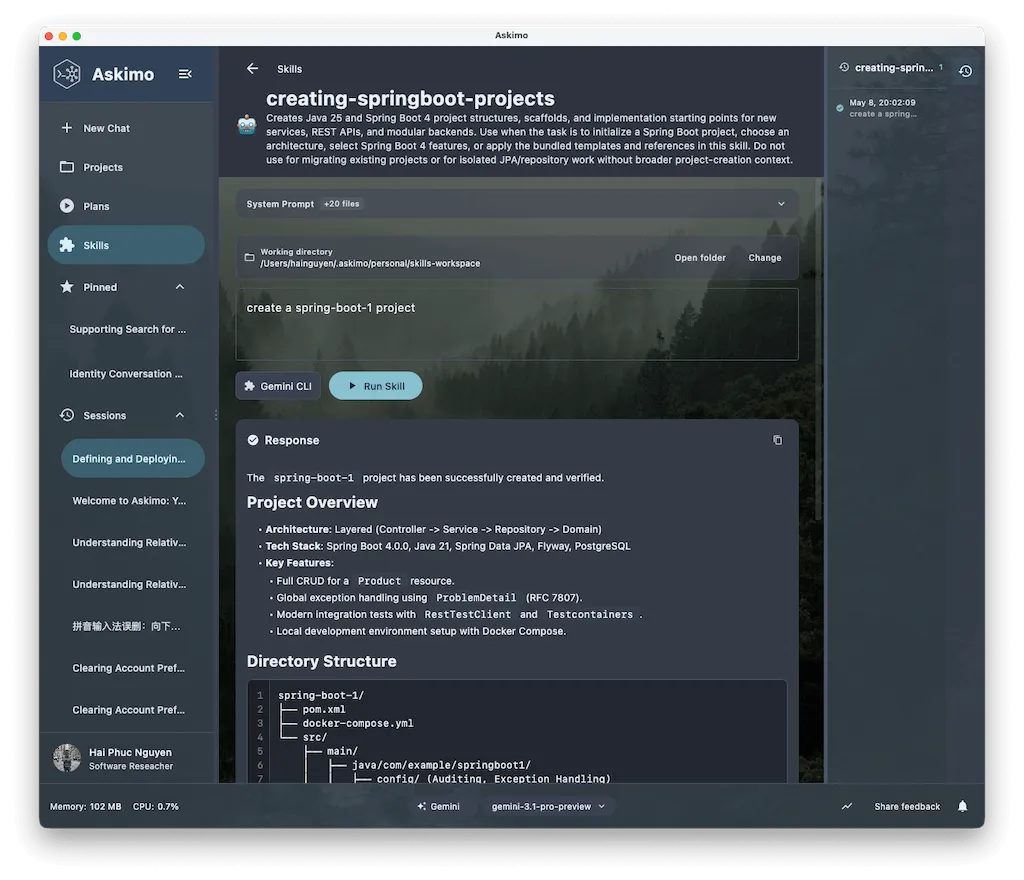
- Open the Skills view from the sidebar.
- Browse the gallery and click on a skill card to open it.
- The executor view shows the skill’s description, its system prompt, and a task input field.
- Select the agent runtime (Gemini CLI or Claude Code) from the dropdown.
- Set the working directory - the folder the agent will operate in. This is typically your project root.
- Type your task in the input field (or leave it blank to let the system prompt guide the agent).
- Click Run.
The agent starts immediately. You can watch its output stream in real time in the output panel. Tool calls (file reads, writes, shell commands) appear as status messages as they happen.
How Skills Work Under the Hood
Section titled “How Skills Work Under the Hood”When you run a Skill, Askimo:
- Reads the
SKILL.mdfile and any supplemental.mdfiles in the skill folder. - Merges them into a combined system prompt.
- Launches the selected agent runtime (Gemini CLI or Claude Code) as a subprocess in the skill’s working directory.
- Streams the agent’s output back into the Skills view in real time.
- Saves the run to the history panel.
flowchart LR U([You type a task]) --> A[Askimo] A -->|system prompt + task| R[Agent runtime\nGemini CLI / Claude Code] R -->|reads & writes| F[Your local files] R -->|streams output| A A --> H[Run saved to history]Run History
Section titled “Run History”Every skill run is saved automatically in the history panel on the right. Click any entry to review its output. You can delete individual records using the delete icon that appears on hover.
Writing Effective Skills
Section titled “Writing Effective Skills”Give the Agent a Clear Role
Section titled “Give the Agent a Clear Role”Start your system prompt with a role definition. This anchors the agent’s behaviour for the entire session:
You are a senior TypeScript engineer specialising in React and Next.js.Your job is to review code for correctness, performance, and maintainability.Be Explicit About Output Format
Section titled “Be Explicit About Output Format”Agents tend to produce better results when you tell them exactly what format you want:
For each issue found, output:- **File**: path/to/file.ts (line N)- **Severity**: Critical / Warning / Suggestion- **Issue**: one-sentence description- **Fix**: the corrected code snippetUse Supplemental Files for Context
Section titled “Use Supplemental Files for Context”Heavy reference material (API docs, style guides, example outputs) belongs in supplemental .md files rather than in SKILL.md. This keeps the entry point readable and lets you update reference material independently.
my-skill/├── SKILL.md ← role + behaviour instructions├── style-guide.md ← coding standards reference└── examples.md ← annotated good/bad examplesSet the Working Directory Correctly
Section titled “Set the Working Directory Correctly”The agent operates relative to the working directory you set at run time. For code tasks, set it to the project root so the agent can navigate the full directory tree. For document tasks, set it to the folder containing the files you want to work with.
Keep Skills Focused
Section titled “Keep Skills Focused”A skill that does one thing well outperforms one that tries to handle everything. If you find yourself writing “and also…” in the system prompt, consider splitting into two skills.
Managing Skills
Section titled “Managing Skills”Editing a Skill
Section titled “Editing a Skill”Open the skill in the executor view and click the Edit button, or edit SKILL.md directly in any text editor. Changes are picked up immediately - no restart needed.
Deleting a Skill
Section titled “Deleting a Skill”- Right-click the skill card in the gallery (or use the menu).
- Select Delete.
- Confirm the deletion.
This deletes the entire skill folder from disk.
Where Skills Are Stored
Section titled “Where Skills Are Stored”~/.askimo/<profile>/skills/Skills are plain files - back them up, version-control them, or share them by copying the folder.
Tips and Best Practices
Section titled “Tips and Best Practices”Set the working directory to your project root. The agent uses the working directory as its anchor for file navigation. A wrong working directory is the most common source of “file not found” errors.
Trust directories in Gemini CLI. On first run in a new directory, Gemini CLI may ask for permission to access files. Use /permissions trust . to trust the current directory, or configure trusted paths in the Gemini settings.
Permission prompts are suppressed automatically. Askimo passes --dangerously-skip-permissions to Claude Code and --yolo to Gemini CLI so the agent never blocks waiting for interactive approval during a skill run.
Keep the system prompt under ~4,000 words. Very long prompts can dilute the agent’s focus. If you need extensive reference material, split it across supplemental files - the agent receives a directory listing and can request specific files as needed.
Version-control your skills with Git. Since skills are plain files, a git init inside ~/.askimo/<profile>/skills/ (or a subfolder) gives you full history and makes it easy to roll back changes.
Troubleshooting
Section titled “Troubleshooting”“No agent runtime found”
Section titled ““No agent runtime found””Neither Gemini CLI nor Claude Code is installed or not on PATH. Install at least one runtime:
npm install -g @google/gemini-cli # Gemini CLInpm install -g @anthropic-ai/claude-code # Claude CodeRestart Askimo after installation.
The agent hangs or produces no output
Section titled “The agent hangs or produces no output”- Check that the working directory exists and is accessible.
- For Gemini CLI, ensure you are signed in (
geminiin a terminal to trigger sign-in). - For Claude Code, check that your API key or subscription is active (
claude doctor).
“SKILL.md not found” or skill does not appear in gallery
Section titled ““SKILL.md not found” or skill does not appear in gallery”Verify that the skill folder contains a file named SKILL.md (or skill.md / Skill.md - all are accepted). A file placed at the wrong depth will not be detected.
Agent edits the wrong files
Section titled “Agent edits the wrong files”The agent operates in the working directory you set. Double-check that the correct project folder is selected before running the skill.
Supplemental file not included in prompt
Section titled “Supplemental file not included in prompt”Ensure the supplemental file:
- Is inside the skill folder (not a sub-folder of the skill folder).
- Is not named
CLAUDE.md,GEMINI.md,AGENTS.md, orREADME.md- these are reserved and ignored.
Learn More
Section titled “Learn More”- MCP Integration - extend your agent with external tools via the Model Context Protocol
- Plans - multi-step AI workflows for tasks that don’t require local file access
- Settings - configure agent runtimes and skill storage paths